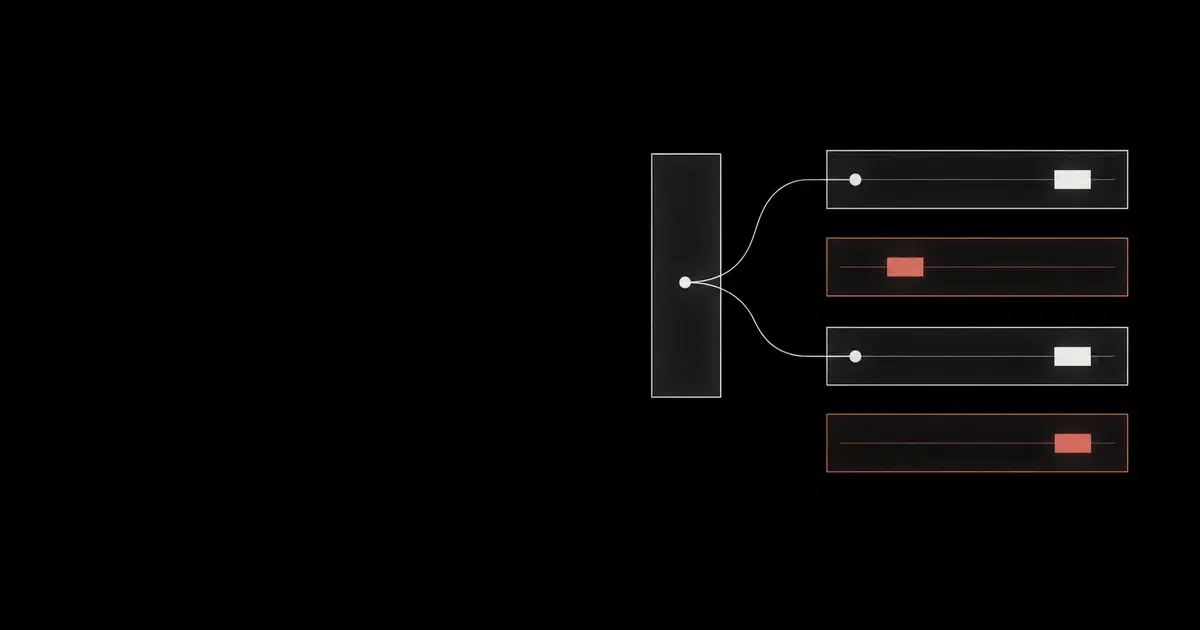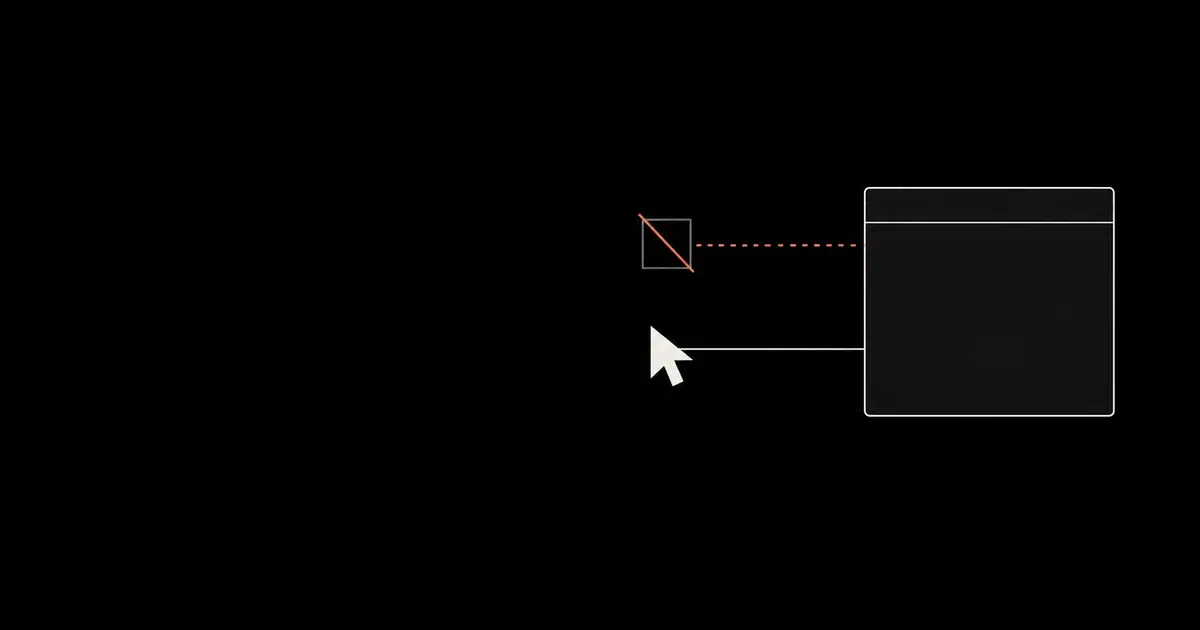

On October 1, 2026, GitHub opened computer use in public preview for Copilot CLI and the GitHub Copilot app on macOS and Windows. Copilot can now operate local desktop applications, including software with no API or MCP integration. That gives an enterprise another access path to review before employees delegate work in signed-in business applications.
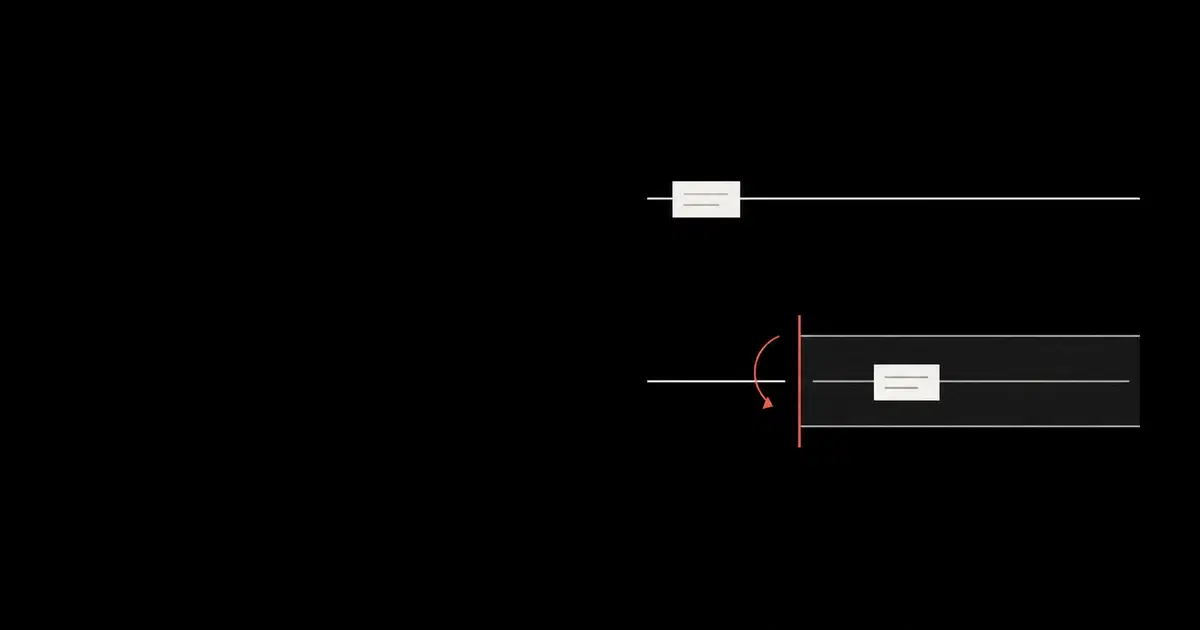
The withdrawal procedure has a catch. An Always allow decision applies to both clients on the same computer, but removing it does not revoke access already granted to a running session. GitHub documents that distinction in its computer-use controls. A clean saved-app list can coexist with an agent that still has permission to act.
Before enabling GUI access, name the permitted workflows and the person responsible for stopping them. The procedure below combines GitHub's documented controls with our recommendations. General Analysis has not tested enforcement in a Copilot deployment.
Map each permission to its lifetime#
Computer use is disabled by default. Once enabled, it follows the permission settings of the client hosting the session. Do not assume every application interaction produces a fresh prompt: the active mode and saved approvals matter, while configured tool denials take precedence. The CLI instructions provide /permissions show to inspect its mode; in the app, review Settings → Sessions → Tool Permissions.
Use this map when reviewing a device:
| Control or decision | Scope | Withdrawal implication |
|---|---|---|
| Local computer-use switch | Enables the feature, subject to managed policy | Confirm the disabled state; do not equate it with deleting approval history. |
| Allow an application | Current computer-use session | End every session holding that grant. |
| Always allow an application | Future CLI and app sessions on the same computer | Delete the saved entry and separately handle sessions already open. |
| macOS Accessibility and Screen Recording | OS prerequisites for interaction and visual inspection | Review these separately through device management. |
Managed features.computerUse: false | Prevents users enabling the feature locally | Verify policy receipt in each client. |
The scope and grant behavior come from GitHub's concept guide, app instructions, and managed setting reference.
Consider a hypothetical expense workflow. A developer permits a browser in the CLI, then later uses that browser through the Copilot app. The saved approval crosses that client boundary. Deleting the browser's saved entry while either session remains open leaves the current grants unresolved. Record both sessions before treating the withdrawal as complete.
An approved browser may contain several signed-in accounts. Start the pilot in a dedicated work environment containing only the accounts and data the task needs. An instruction to prepare a draft should not become the sole control protecting a live payment account.
See how your AI systems hold up under real attacks
General Analysis maps AI applications and agents, red teams prompts, retrieval, tools, MCP servers, browser actions, permissions, and business workflows, then turns findings into evidence your team can reproduce and retest.
Block rollout through managed policy#
If computer use is outside the approved deployment, add the following fragment to the managed configuration already delivered to those users. Merge it with the existing file so other controls survive.
Code source: GitHub's features.computerUse reference, reduced to the relevant setting.
{
  "features": {
    "computerUse": false
  }
}
Setting the value to true, or omitting it, lets users choose locally. It does not require them to enable the feature. The restriction applies to Copilot CLI and the GitHub Copilot app; do not extend this statement to unrelated Microsoft Copilot products.
For server delivery, GitHub uses copilot/managed-settings.json in the designated .github-private repository. Validate the configuration and check activation using the enterprise setup instructions. Server changes normally refresh within about an hour, native MDM is checked hourly, and managed-file changes require a client restart. These are documented loading behaviors, not a guarantee that a particular device received the policy.
Keep the policy revision, client versions, account, device, and verification time together. Our managed-permissions guide covers delivery failures and conflicting sources in more detail. The feature reference does not establish immediate cancellation of every running operation after a central change. During an incident, stop active work directly instead of waiting for a fleet refresh.
Stop current work, then remove future access#
Use this sequence with the affected user or authorized endpoint operator:
- Interrupt each affected operation. In the CLI, press
Esctwice. In the app, use Stop or pressEsc. Check both clients and any other affected device. - End the affected sessions. GitHub's app documentation identifies session termination as the way to revoke application access granted to that session. Removing an entry from the saved list is insufficient.
- Remove saved approvals. In app settings, open Computer Use → Always allowed apps and delete the relevant entries. This changes future approvals in both clients on that computer.
- Disable the feature where required. Use the app switch or
/computer off; deploy the managed restriction for an ongoing enterprise prohibition. In the CLI,/computer showreports the plugin and MCP server state. - Check what the application already did. Review submitted records, messages, uploads, or account changes through the affected business system. Assign any reversal or credential response through the normal incident process.
The interruption and grant-removal mechanics are in the app guide and CLI guide. The downstream review is our recommendation: a stopped agent does not establish that an earlier effect was reversed.
Treat screenshot destinations as part of that review. If the workflow captured private application content, find where those artifacts went; our PixelLeak guide covers private review paths and earlier uploads. Keep incident evidence in restricted storage rather than reproducing sensitive screenshots in a general rollout ticket.
Collect evidence before approving a pilot#
Use an owned test application with dummy data. Record the exact clients, permission modes, policy source, and session state. The following are proposed acceptance checks, not results we obtained:
- With the managed block loaded, attempt local enablement in both clients. Record the policy refusal and feature status.
- In an explicitly permitted pilot, inspect how a saved app approval carries between CLI and app. Then delete it, end the affected sessions, and inspect the next fresh session's approval behavior under its recorded mode.
- Interrupt a harmless draft edit and inspect the application afterward. Record which changes completed before the stop, then verify that the session has ended.
Retain tool decisions alongside the application's records. For a denial check, capture the refused tool request. For a stop check, record the last completed effect and the session's end state.
Keep the local sandbox rollout as a separate acceptance task. Its file, network, and credential restrictions do not by themselves establish the state of GUI app grants. Approve the workflow only when its session access, application identity, and observable effects match the intended job. The wider baseline is in securing coding agents.
Frequently asked questions
- Does deleting an Always allow app entry revoke current Copilot access?
No. It removes the saved approval for future sessions in both Copilot CLI and the Copilot app on that computer. Stop the current operation and end each affected session to revoke access granted to those sessions.
- How can an enterprise disable Copilot computer use?
Set features.computerUse to false through enterprise managed settings. Users cannot override it by enabling computer use locally. Verify policy receipt in both clients; the documentation does not establish an immediate fleet-wide cancellation guarantee for work already running.